Microsoft Deployment Toolkit (MDT) for newbies - Part 5
In our final part, we want to create the offline media to use to reimage our physical machines.

In our final part, we want to create the offline media to use to reimage our physical machines.

Now that we have captured our first reference image, we can import this reference image and start creating our production image right? Well, let do some reference image clean up first.

In part 2, we installed everything and got out first task sequence working. Now lets go further and finish off our reference image.

From part 1, we got all the tools we needed and are now ready to start installing MDT and getting started on our first reference image.


In the last 4 parts, we looked at of setting up a SCCM test lab and have now deployed our first application.
In this post, we will look at how the deployed application looks on the client side and install this new application.
This post was delayed as I was looking into SCCM 2016 and investigating the upgrade paths

In the last SCCM Test Lab post, we looked at part 4, where we had done the basic setup, and were looking to go further into part 5.
Things have moved on since then. Microsoft has now officially released Windows Server 2016 and SCCM 2016. Windows 10 1607 was also released, with some interesting aspects about App-V and UE-V.
My focus for the last 2 months had been to plan for how we could in our organization have coexisting operating systems (Windows 7 and Windows 10) when the App-V solution was different for Windows 10 1607.
In this post I’ll be sharing some of the things I have discovered, and how you can try to make sense of all the confusion which might be out there.

Recently I have been troubleshooting an issue I had with Visio Viewer 2016 on Windows 7. The application appears to install just fine, all Visio drawing files appears with the correct icons and is now associated with Internet Explorer. But once you open the file, the plugin or viewer does not load in Internet Explorer.
Note : This was tested on Windows 7, but it applies to Windows Server 2008 R2 as well. It is in fact where I first encountered the error

When we last looked at the PowerShell App Deployment Toolkit, we looked at a simple example of installing Visual C++ Runtime, which does not show the power of using the toolkit. In this post, we want to look at a more complete example of using the toolkit to save time and effort creating deployment scripts.
But first, we want to look into some of the configuration options of the toolkit. The toolkit folder has a file called AppDeployToolkitConfig.xml. This contains all the default configurations which will be used for all deployments.


This post picks up after part 1 and part 2. I suggest you read both parts first to understand what is happening here in part 3.
Anyway, this has been long overdue :-)
In this part, we will be looking at setting up some initial group policies, setting up firewall rules, installing SCCM prerequisites, and finally installing SCCM.
Well, lets get started then

If you have not read part 1 yet, I suggest you read that post first.
In part 1, we set up a basic server and nothing else. It is time to add more bits to our server and create our test lab domain. When we ended part 1, we shut down our server. Time to boot it up, and login as the local administrator.

This post is meant to guide you through setting up a simple, DIY, for your own use, test environment. This lab will be a simple Windows domain with SCCM and 1 client machine.
Everything will be setup using virtual machines on 1 single host. The example below assumes this will be done on your own workstation, but that does not have to be the case, and you can set this up remotely somewhere else as well.

In my line of work, knowledge of how installations work is crucial. And with that knowledge, comes experience making terrible vendor installations work properly in an enterprise environment. For years, the standard solution, when troubleshooting and experimenting was going nowhere, was to repackage the troublesome app. Where experimenting lead somewhere, there might have been an eventual VB script written to cater for all the complexities involved to get everything working properly.
Some of the common challenges were
Show a nice interface to let users know something was happening, for silent installs
Install admin (system context) and user level files or registry keys, from the same script.
Return proper error codes back to the deployment system (commonly SCCM)
Link together several installations
Switch between install types (interactive, passive or silent; pulled install, task sequence, server install, etc)
These were common problems, and in some cases, you had to make several installation scripts, to cater for different scenarios. Ok, if you had enough time, you could create a script that accepted certain parameters on launch, to do different things. But in the rush to meet SLAs, you would do the most urgent thing first, and then go back to revisit the app later, when a different scenario was needed.
Which is why I was happy to find the PowerShell App Deployment Toolkit, as a common deployment toolkit to help with the common packaging and deployment issues.

Ok, here is my situation.
Once I’m done using my home PC for the day, I shutdown my Windows 10 PC as I normally would from the Start menu. The next morning, while I’m away at work, my son comes along, presses a few keys on my keyboard, and my PC switches on back to life. My PC remains on for the whole day until I come back home from work.
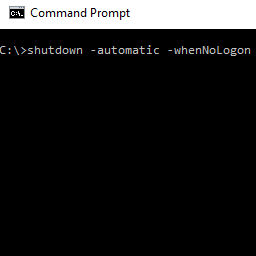
Sounds familiar? Well, that is what I faced, and I was looking for an automated solution: once my PC turns on, wait for several minutes, then check if someone is logged in. If no one is logged in, shutdown the PC. And here is what I finally ended up with.
I wanted something which will work and log what happens as well. And being that PowerShell is sort of the “replacement” of VBS and CMD files, this would be in PowerShell as well.
First things first, how do i detect if someone is logged in to the machine? Turns out, this can be quite complicated. The first Google link I found was on the Spiceworks Forum. That did not work. Then I tried a few more links. All seemed far too complicated, although it would eventually work. I think.