Planning a home lab setup
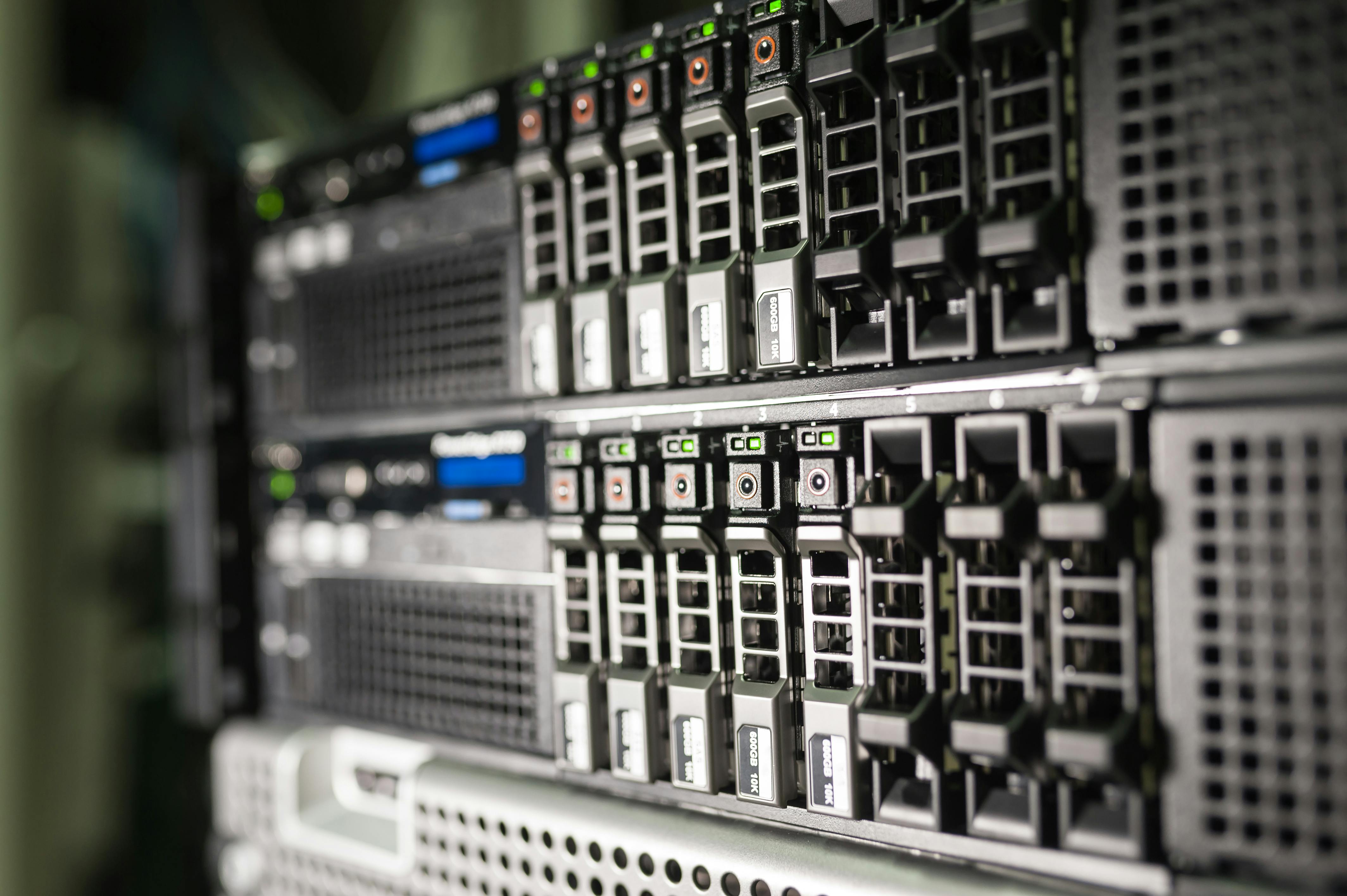
After years of tinkering with self-hosted services-on and off for the better part of a decade, the whole homelab movement opened my eyes to just how much more I could be doing. So when the opportunity came with a new house build, I decided it was the perfect time to rethink everything from the ground up. I sat down and sketched out a proper wish list:
- all the things I wanted my reimagined homelab to handle,
- the problems I wanted to solve,
- and the kind of setup I wished I’d had years ago.
Multiple Devices (Compute and Storage)
I used to run everything on a single server, and over the years it slowly turned into a bit of a Frankenstein machine. After countless installs, removals, and Docker experiments, it became harder and harder to manage. That “one big box” approach just didn’t scale anymore.
So for the new homelab, I wanted to break things apart properly. The plan is to run dedicated storage nodes, whether that’s TrueNAS, a plain ZFS pool, or something similar, whose only job is to store and serve data reliably. Then, separate compute nodes handle the actual workloads: VMs, containers, and anything else that needs CPU and RAM. They simply pull their data from the storage layer.
This separation keeps everything cleaner, easier to maintain, and far more scalable. I can start small and add more nodes over time without re-architecting the whole setup.
Multiple Docker Hosts
Running every container on a single host has one big downside: when that machine reboots, everything goes offline. Even if the reboot is quick, it still means services like Jellyfin or internal dashboards disappear for a moment, which isn’t ideal.
By spreading workloads across multiple Docker hosts, I can keep essential services running on one node while experimenting freely on another. Stable things stay stable, and the fun, breakable stuff lives somewhere else. It’s a simple change that makes the whole environment feel more resilient.
Management Interface for All Docker Hosts
After using tools like Portainer in the past, I knew I wanted a single place to manage containers across all hosts. A proper “single pane of glass” makes life so much easier-no more SSHing into different machines or juggling multiple dashboards just to check logs or restart a container.
Having one interface to view, deploy, and manage containers across the entire cluster keeps everything tidy and saves a ton of time. It also reduces the chance of making mistakes when jumping between different hosts.
Monitoring for All Docker Containers and Hosts
Keeping a homelab healthy means knowing what’s going on under the hood-not just on the hosts themselves, but inside every container running on them. With proper monitoring in place, you get container-level metrics, log aggregation, and a clear view of how your services behave over time. It’s the difference between guessing what went wrong and actually understanding it.
On top of that, having alerting wired in means you’ll know the moment something breaks, slows down, or starts acting weird. Whether it’s a container restarting in a loop, disk space filling up, or a host going offline, good alerts save you from discovering problems only after users-or your future self-notice something is down.
Ubiquiti Dream Machine for Routing and DNS
The Ubiquiti Dream Machine has become the central brain of my network, handling routing, firewalling, and VLANs all from the clean and intuitive UniFi interface. Instead of juggling multiple tools or digging through endless config files, everything lives in one place with a UI that actually makes sense. Creating networks, isolating devices, or tweaking firewall rules takes seconds, not an afternoon.
One of the biggest wins is having local DNS resolution for internal hostnames like nas.home or git.home. It keeps things tidy and makes services easier to reach without memorising IP addresses. The Dream Machine handles this seamlessly, and it plays nicely with the rest of the homelab stack.
Network segmentation is another area where it shines. With proper VLAN management, I can keep IoT devices, lab gear, and trusted personal devices in their own isolated networks. It’s cleaner, safer, and gives me far more control over what talks to what.
And the best part? I can manage all of it without touching a CLI. For someone who spends plenty of time in terminals already, having a network appliance that “just works” through a UI is a breath of fresh air.
Reverse Proxy with SSL Certs
No more memorising IP:PORT combos or digging through bookmarks. A reverse proxy gives every service in the homelab a clean, friendly URL-git.myhomelab.com, jellyfin.myhomelab.com, whatever you want-so everything is easy to reach and easy to remember. It instantly makes the whole environment feel more polished and organised.
ℹ️ Note, you need to have an external public domain in a provider like Cloudflare or GoDaddy for automated SSL provisioning to work. The certificate issuer needs some way to publically access your domain to verify before issuing a certificate.
A reverse proxy also becomes the single entry point for both internal and external services. Instead of exposing multiple ports across multiple machines, everything funnels through one secure gateway. This keeps the network tidy and dramatically reduces the attack surface.
The real magic comes from automatic SSL certificate provisioning via Let’s Encrypt. Certificates renew themselves in the background, so you get proper HTTPS everywhere without babysitting expiry dates or manually generating certs.
For the proxy layer itself, tools like Nginx Proxy Manager and Traefik are popular self-hosted options. Both make it easy to route traffic, manage certificates, and keep everything running smoothly-without needing to hand-craft Nginx configs or dive into a CLI unless you want to.
Clean domain names, automated SSL, and a single controlled entry point all add up to a much more streamlined homelab experience.
Self-Hosted Git (Code and Documentation)
Running your own Git service gives you full control over your code, your documentation, and the way your projects evolve over time. Instead of relying on a third-party platform, everything lives on your own infrastructure, under your own rules, with no external dependencies or surprise limitations.
For this, Gitea has become my go-to choice. It’s a lightweight, self-hosted alternative to GitHub that’s fast, easy to manage, and perfect for homelab environments. Repositories, issues, pull requests, wikis-it’s all there, without the overhead of a massive platform.
One of the standout features is Gitea Actions, which brings CI/CD pipelines directly into the setup. Automated builds, tests, and deployments run right alongside the code, making it simple to push changes and have the rest of the system react instantly. It keeps everything tight, consistent, and integrated.
Documentation lives right next to the code as well, thanks to Markdown-based wikis and files. Whether it’s notes, architecture diagrams, or full project docs, everything stays version-controlled and easy to update. No more scattered notes or forgotten configuration details.
Self-hosting Git isn’t just about control, it’s about creating a clean, centralised hub for all the code and knowledge that powers the homelab.
Self-Hosted Media Server
A self-hosted media server makes it easy to enjoy your entire collection of movies, TV shows, and music-whether you’re at home on the couch or streaming remotely on your phone, tablet, or TV. No subscriptions, no ads, no restrictions. Just your own library, available anywhere.
For this setup, Jellyfin is the star of the show. It’s fully open-source, actively developed, and completely free, making it a great alternative to the big commercial platforms. Jellyfin automatically organises your media, fetching metadata like posters, cast lists, episode summaries, and more, so your library looks clean and professional without any manual effort.
It also supports hardware transcoding, which is a huge win for smooth playback on any device. Whether you’re streaming a 4K movie to a low-powered tablet or watching something over a slower connection, Jellyfin can adjust the stream on the fly to keep everything running smoothly.
And because it’s self-hosted, you stay in full control of your content-no external services, no data collection, and no limits on how much you can store or stream.
Other Self-Hosted Tools
Well, many planned, and I am experiementing with. Joplin, PaparlessNGX, SearXNG and others. But that is the way of a homelab. Testing and experimenting.
Machine Builds Using Ubuntu Auto Install
Sitting through installation steps sucks. Clicking through the same menus over and over gets old fast, especially when you’re spinning up multiple machines or rebuilding something after a failure. That’s why having an automated way to install the OS isn’t just convenient-it’s a lifesaver during restores or full rebuilds.
With Ubuntu’s Auto Install system and cloud-init, you can create fully repeatable, unattended installs that configure themselves from the moment they boot. Just a clean, consistent machine every single time.
The best part is that every node starts with the exact same base configuration from day one. Users, packages, SSH keys, networking, storage layouts-it’s all defined in a single declarative config. Whether you’re provisioning a brand-new server or rebuilding one that died, the result is identical.
Once the OS installs itself, Ansible can take over and apply roles, hardening, and application stack. The whole process becomes predictable, fast, and repeatable.
Configuration Using Ansible
Managing a homelab gets a whole lot easier once everything moves to declarative configuration. Instead of manually tweaking each machine and hoping I remember what I changed last week, Ansible lets me define the desired state of every host in code. If something drifts, breaks, or needs rebuilding, I just run the playbooks again and the system snaps right back into alignment.
The real magic comes from Ansible’s idempotent playbooks. I can run them repeatedly without worrying about duplicating users, reinstalling packages unnecessarily, or messing up existing configs. Whether I’m adding a new node or refreshing an old one, the process is predictable and safe.
📖 Idempotent in simple terms means each task checks the system’s current state before doing anything, and only makes changes when something is missing or out of place. Running the same playbook multiple times won’t break anything or repeat work-it will simply ensure the machine ends up in the state you defined. This makes it safe to reapply configurations whenever you need to fix drift, rebuild a host, or roll out updates across the whole homelab.
To keep things organised, I break everything into reusable tasks. Common tasks-installing Docker, setting up users, applying firewall rules-live in their own tasks so I can apply them across multiple hosts without rewriting the same logic. It keeps the structure clean and makes scaling the homelab much easier.
All of this is stored in Gitea, which means every configuration change is version-controlled. If I ever need to roll back, compare changes, or track how the environment evolved, it’s all right there in the commit history. My infrastructure becomes self-documenting just by virtue of being in source control.
And honestly, having tools like Claude or other AI assistants in the mix has been a huge help. Whether it’s generating boilerplate, fixing YAML indentation (the eternal struggle), or helping design new roles, AI has become a surprisingly handy co-pilot for infrastructure as code.
Data Backups and Restore
If there’s one universal truth in the homelab world, it’s this: a backup you’ve never tested isn’t really a backup. It’s a nice idea, a comforting illusion, but when disaster strikes, untested backups have a bad habit of turning into corrupted archives, missing files, or “why won’t this restore?” moments. And nobody wants to learn that lesson the hard way. And I was not doing much of any backups before, relying on storage redundancy, which is not backup.
I am trying the classic 3-2-1 rule. It’s simple, and surprisingly effective: three copies of your data, stored on two different types of media, with at least one copy living offsite. Whether you’re protecting family photos or your entire homelab stack, this rule gives you a solid foundation against everything from accidental deletes to full-blown hardware failures.
To keep things running smoothly, I rely on automated tools like Restic and Duplicati. They handle the boring stuff-scheduling, encryption, versioning, and syncing to remote storage-so backups happen consistently without me needing to remember anything. Automation is the difference between “I think I have backups” and “I know I have backups.”
But the real secret sauce is regular restore testing. Destroy a container, reinstall, pull down a backup and make sure it actually works. Periodic testing and backups are healthy is also essential. It doesn’t have to be a full disaster-recovery drill; even restoring a handful of files is enough to confirm that everything is healthy. Think of it as a quick health check for your data.
The flow looks something like this:
  flowchart TD
    A[Storage Stack] <--> B[Compute Stack]
    B --> C[Local Backup]
    A --> C
    C --> D[Remote Backup]
Remote Access
I want an easy, secure way to get into my home lab from anywhere without opening things up to the whole internet. Cloudflare Tunnels worked fine for a while, but they still rely on exposing certain services externally, and I’m really not a fan of having anything publicly reachable if I can avoid it. Even with authentication, it just feels unnecessary when a VPN can limit access by default.
That’s why I’ve been looking at options like Tailscale or NetBird, basically lightweight, WireGuard-based tools that make remote access feel like you’re sitting at home on your own network. Instead of publishing individual services, you just hop onto your private mesh network and everything is there: dashboards, containers, file shares, whatever. No port-forwarding, no reverse proxies, no “hope this isn’t getting scanned by bots today.”
The big win is being able to access the entire internal network exactly as if I were on my home Wi-Fi, but without the hassle of managing a traditional VPN server. It keeps the attack surface tiny and the setup simple, which is pretty much the sweet spot for a home lab.
Conclusion
This is the end of the long introduction. I plan go into detail for each section later in other posts